
Introduction
Python currently holds the top spot as the most popular programming language. As of April 2025, the TIOBE Index ranks it #1 with a 23.08% share, ahead of long-time staples like JavaScript and C++.
And it’s popular for a reason.
Python has earned its spot because it lowers the barrier to coding. It reads like plain English, has enormous ecosystem of libraries, and is backed by a massive open-source community that builds, shares, and constantly improves tools.
Thanks to that ecosystem, and the rise of large language models (LLMs), building with Python has never been easier. What once required teams of specialists or enterprise software can now be prototyped by a single engineer. If the tool you need doesn’t exist yet, Python makes it easy to build your own.
Why Learn Python?
You might have heard the language being thrown around left and right, but never really understand “What’s it actually for? And is it worth my time to learn?”
In short: yes, and it’s likely more valuable than you realize.
Programming is often seen as something only “programmers” need. That’s no longer true. Programming is for generalists. It’s a force multiplier that lets you build your own tools and solve your own problems.
Think of Python as Excel on steroids (and more, though, to be fair, it’s not a one-to-one comparison). What Python allows you to do is to automate, analyze, and build just about anything. The sky’s the limit.
Not to mention the ongoing revolution in AI and machine learning. If you’ve ever been curious about building your own neural networks or exploring intelligent automation, learning Python is basically a prerequisite, as it’s the foundational language for nearly every major AI and ML framework today.
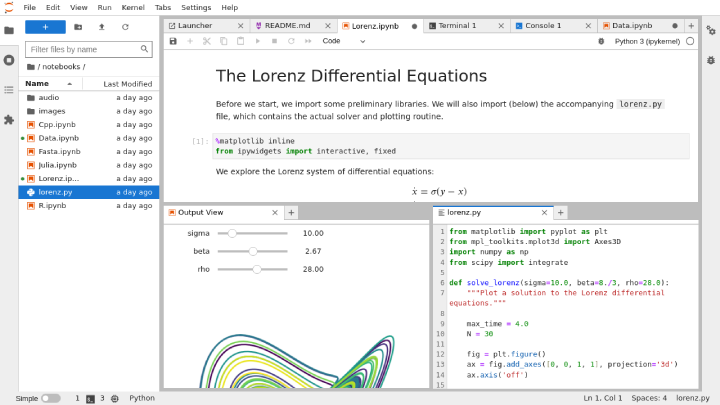
Here are some practical examples Python can do for you:
Automate Routine Tasks
Python can handle repetitive tasks like moving data between spreadsheets, renaming files, generating reports, and applying consistent formatting. This reduces manual work, minimizes errors, and saves time.Accelerate Data Processing and Analysis
Where spreadsheets start to choke, Python excels. With libraries like Pandas and NumPy, you can work with large datasets, apply complex logic, and perform custom data transformations quickly and reliably.Produce High-Quality Visualizations
Using tools like Matplotlib, Seaborn, and Plotly, Python can create clear, interactive, and publication-ready visuals that make patterns and insights easy to spot, well beyond the limitations of Excel charts.Rapidly Prototype and Test Solutions
Need to test an algorithm, simulate custom engineering model, or spin up a basic app? Python makes prototyping fast and accessible. Its vast ecosystem lets you build functional solutions without heavy infrastructure or a dev team.
Python won’t replace your job, but it will help you do it better, faster, and with less tedious work. If you’ve ever thought, “There has to be a better way to do this,” Python might just be your answer.
And no, you don’t need a computer science degree to get started.
Why Engineers Don’t Use Python (Yet)
You might wonder: “If Python is so great, why isn’t everyone using it?”
That’s a fair question. While Python is already a go-to skills in data science, machine learning, and web development, its adoption in traditional engineering roles is still minimal, though that’s starting to change.
Some engineering software vendors now offer its version of Python APIs or SDKs. Still, adoption is in its early stage.
One comment I once heard from a colleague is: “I’ve heard of Python, but I’ve never had a reason to learn it.”
And honestly, that understandable. Programming, let alone Python, isn’t usually core to most engineering curricula. If your college classes didn’t teach it, chances are your future work wouldn’t demand it, giving little incentive for engineers to pick it up. There’s also a persistent perception that coding is a software developer’s job, not an engineers.
Beyond that, engineers already have powerful, domain-specific tools at their fingertips. Whether it’s Aspen, MATLAB, or a PLC programming suite, these tools are built with safety, accuracy, and validation in mind. Engineering is high-stakes work. Errors can cost lives or millions of dollars. That’s why we rely on trusted software that’s been rigorously tested over decades. Trying to rebuild a full thermodynamic model or dynamic simulator from scratch in Python? Not only is it a massive task, its unnecessary.
So Why Learn Python? (Hint: It saves you time)
Even if traditional engineering software isn’t going anywhere, Python is still a powerful tool that can make your job easier and more efficient. Say you’re working with simulation results. Sure, you could just use Excel to plot the data, but what if you need to run a batch of simulations, filter the outputs, generate reports, and email them automatically? That’s where Python shines. It’s not about replacing your core tools, but for making them work harder for you.
Python can also be use collaboratively. Engineers don’t work in a vacuum anymore. You might need to hand off data to a data scientist, connect your results to a web dashboard, or run large-scale analytics. Python is the common language across these roles. Even if others are using different programming languages, learning Python can be a great stepping stone toward understanding those too.
And the best part? The learning curve is gentle. Unlike some languages that throw you into the deep end, Python reads almost like plain English. You can start getting useful things done right away, automating Excel reports, cleaning data, analyzing CSVs, without becoming a full-time coder.
What makes programming in Python special? Well, it’s:
Fast to develop: No compile step, just write and run.
Cross-platform: Works everywhere; Windows, macOS, Linux, even mobile.
Extensible: Easily hooks into C/C++ or gets embedded into other tools.
Open source: Massive library ecosystem, transparent internals, and a community that loves to build and share.
Python may not be the fastest at runtime, but it’s often the most flexible and fastest to get something working. Whether it’s for analyzing data, simulating models, building dashboards, automating tasks, or scripting applications, Python handles it all with minimal setup.
And that’s what matters. You don’t use it to write a heavyweight engineering solver suite, but for automating a tedious task, sketching a quick prototype, or test and break an idea fast.
Getting Started with Python in the Cloud
You don’t need to install anything to start coding your first line of code.
Google Colab lets you write and run Python code directly in your browser for free. It’s like Google Docs, but for Python programming.
Why use Google Colab?
No installation required
Free access to compute resources
Easy to share notebooks with others
Integrates well with Google Drive
Supports popular Python libraries out of the box
To try it out, head to colab.research.google.com and sign in with a Google account. Create a new notebook (File > New Notebook).
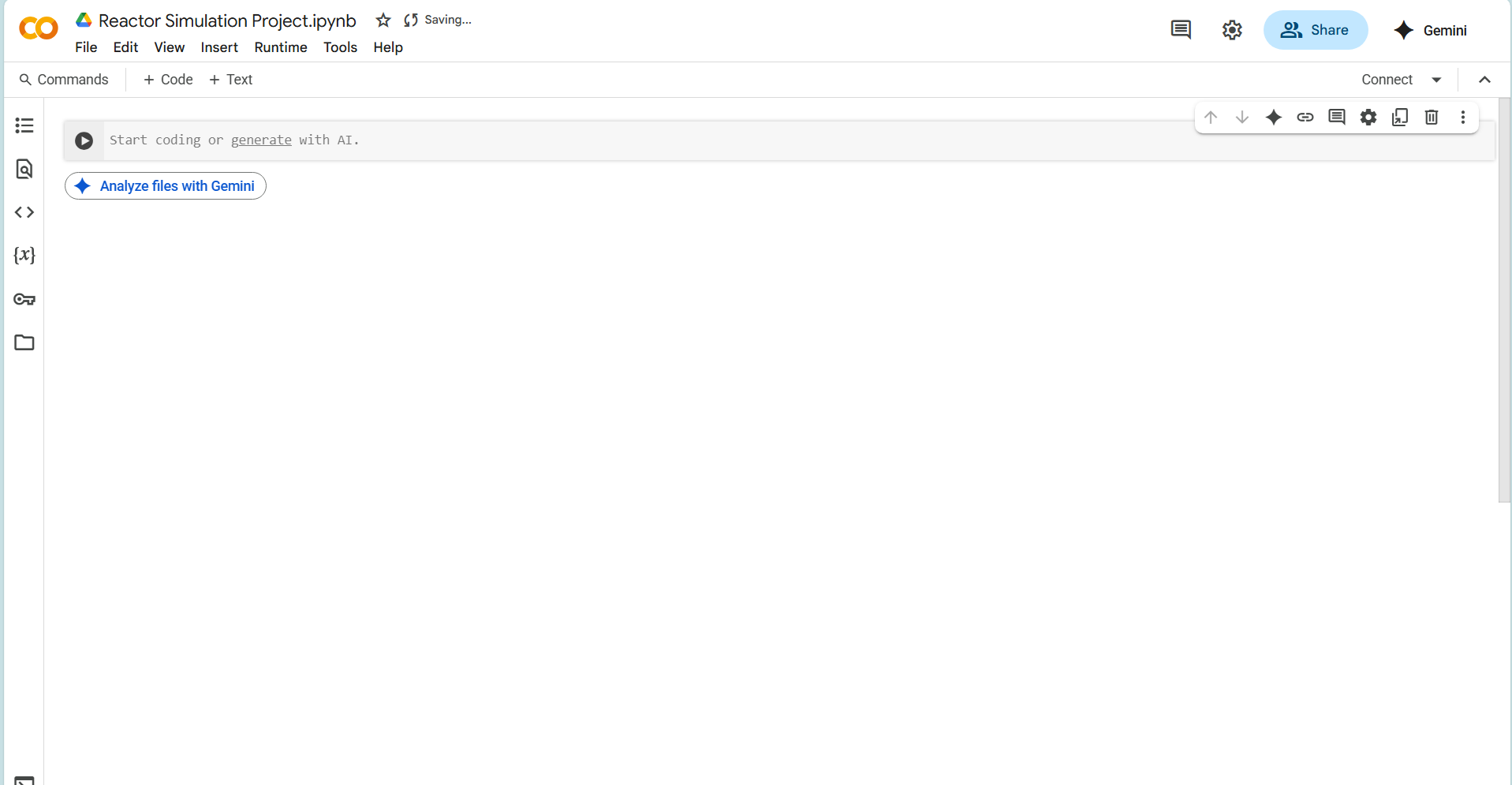
You’ll see an empty cell where you can start writing Python code. For example, type:
print("Hello, Python!")Hello, Python!Then hit Shift + Enter to run the cell. You should see the output Hello, Python! appear right below. Congrats! You just ran your first Python code!
Colab is great for interactive experimentation. As you go through the Python basics below, feel free to follow along by typing the examples into a Colab notebook (or any Python environment of your choice). Hands-on practice is the best way to learn programming.
(Of course, Colab is just one option. You can also install Python on your computer (from python.org or via Anaconda distribution) and use an IDE like Spyder or VS Code, or a local Jupyter Notebook. But to keep things simple, we’ll assume you’re using Colab or similar, so you can focus on learning Python itself rather than dealing the with drama surrounding installation.)
Tips for Learning Python (as you go along)
Python is often called an “easy” language, but that doesn’t mean you’ll master it overnight. Learning the basics still takes time and focus, and it’s totally normal to feel stuck or frustrated in the beginning.
One thing that made a big difference for me: write the code yourself. Don’t just copy and paste or skim through examples. For every code snippet or cell you see, including in this article, try rewriting it on your own. Change things. Break things. See what happens.
The more you tinker, the more you learn. Be curious. Experiment. It’s okay to mess things up. In fact, that’s often when the real learning kicks in.
Honestly, the fundamentals can feel boring and slow. If you’re like me and want something more hands-on, jump into a small project. Pick something that excites you, find example code online, and go through it line by line. Google anything you don’t understand. You’ll pick up concepts as you go, and it sticks better when you learn by doing.
These are just the things that worked for me. They might not work for everyone, and that’s okay. Just remember: progress in the early stages feels slow, but once the basics click, your ability to build and solve real problems grows fast, and that’s when it gets really fun.
Python Core Concepts
Variables and Data Types
In Python (and programming in general), a variable is like a labeled container for a value. You can store a piece of data (a number, some text, etc.) in a variable and refer to it later by name. You simply write variable_name = value to assign a value.
For instance, you might say “Let Tc be the temperature in Celsius”. In a Python program, you could create a variable temperature_c and assign it a value.
#This is a comment line
#You can start a comment in a line by putting the char "#"
#Comment line will not be executed, as it won't be seen as part of the code

# Assigning values to variables
reactor_name = "CSTR-01"      # reactor name as text
temperature_c = 85.0          # temperature in Celsius
pressure_bar = 2.8           # pressure in bar
reactor_volume = 25 # volume in cubic meterssHere we created four variables:
reactor_nameholds the text"CSTR-01".temperature_cholds the number85.0.pressure_barholds the number2.8.reactor_volumeholds the number25.
You can update these values anytime. Python will keep track of their types and values behind the scenes.
Notice that Python is smart about types: we didn’t have to tell it that reactor_name is text and temperature_c is a number. It figures that out from the value. In programming, it means Python infers an object data type automatically.
As a matter of fact, every value in Python has a data type, and it tells Python how that value behaves and what you can do with it.
Let’s break down the most common types you’ll use.
Numeric Data Type
Used when you’re working with numbers, for math, calculations, and measurements.
DATA TYPE | DESCRIPTION | EXAMPLE |
|---|---|---|
| Whole number |
|
| Decimal number |
|
| Real + imaginary numbers |
|
T = 350                 # int → whole number
K = 350.2384            # float → decimal number
a = 3 + 4j              # Complex number with real part 3 and imaginary part 4
b = complex(5, -2) # Equivalent to 5 - 2jText / String Data Type
In Python, any piece of text, like a name, a message, or a label, is called a string. You use quotes to create one:
DATA TYPE | DESCRIPTION | EXAMPLE |
|---|---|---|
| Text string |
|
We have written a string variable before, recall the previously defined variable reactor_name :
reactor_name = "CSTR-01"You can combine strings using the + sign, or use something called an f-string to mix text and variables in a cleaner way. For example:
plant = "Alpha"
unit = 3
status = "Plant " + plant + " - Unit " + str(unit) + " is online."
print(status)
Plant Alpha - Unit 3 is online.Here, we have successfully joined multiple string variables into a single and longer string using the + sign. Notice that we had to convert unit (a number) to a string using str(unit). Had we not do this, Python would give an error.
We can avoid the use of many + sign with the f-string. Below is the same example using an f-string (recommended):
plant = "Alpha"
unit = 3
status = f"Plant {plant} - Unit {unit} is online."
print(status)Plant Alpha - Unit 3 is online.The f at the start tells Python to evaluate whatever’s inside the {} and insert the result into the string. It’s an easy way to build messages without breaking up the sentence.
Strings also come with built-in tools (called methods) that help you format or clean up the text. Here are a few examples:
The.upper() and .lower() method.
city = "New York"
print(city.lower())  # new york
print(city.upper()) # NEW YORKnew york
NEW YORKThe.strip() method
name = "  Taylor  "
print(name.strip()) # "Taylor"TaylorThe.replace() method
phrase = "I like cats"
print(phrase.replace("cats", "dogs")) # I like dogI like dogsThe.startswith() / .endswith() method
filename = "photo.jpg"
print(filename.endswith(".jpg")) # TrueTrueFor more reference on string method, you can check the W3School page.
Boolean Data Type
Used for logic. There are only two values for Boolean (Caps sensitive): True or False
DATA TYPE | DESCRIPTION | EXAMPLE |
|---|---|---|
| True or False values |
|
the_sky_is_blue = True
python_is_hard = FalseSequential & Collection Data Types
Often you’ll deal with sets of values. For example: a list of temperatures recorded over time, a range of number, datapoints, etc.
Python offers several collection types, with list being the most common. A list is an ordered collection of items. You define it with square brackets [...].
DATA TYPE | DESCRIPTION | EXAMPLE |
|---|---|---|
| Ordered, changeable sequence |
|
| Ordered, unchangeable sequence |
|
| Key-value pairs |
|
| Unordered, no duplicates |
|
The List datatype
Lets start by defining our very firsts list variable:
groceries = ["milk", "eggs", "bread", "apples"]Now groceries is a list with 4 items. You can do a lot with it. For example, you can see how many items are in the list using the len() function:
print(len(groceries)) # 44Or grab a specific item by its position. in a Python list, each item in that list has a position called its index. Index is how we keep track of where things are. It is important to remember that Python indexing starts counting at 0, not 1.
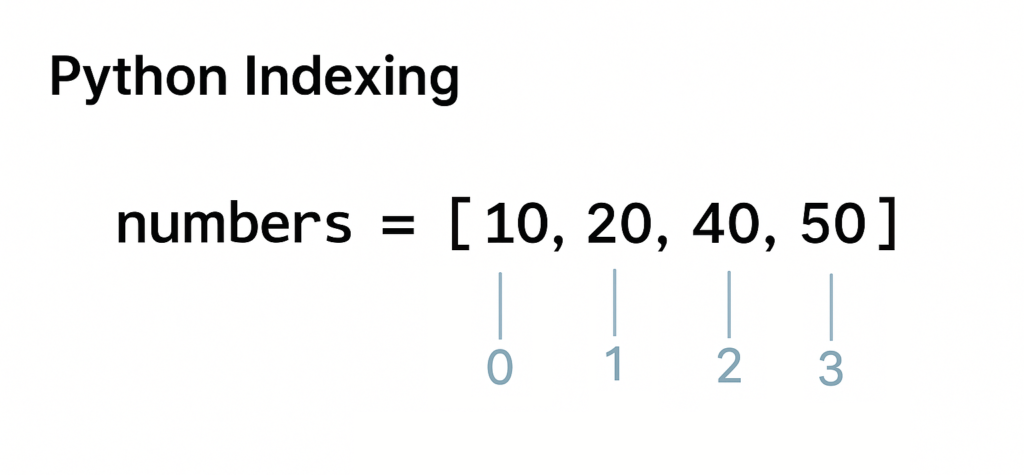
So if you want the first item, you write:
print(groceries[0])milkWant the third item? Use the second index:
print(groceries[2])applesThis zero-based indexing might feel weird at first, but it’s common in programming, not just in Python, but in languages like JavaScript, C, and many others.
Another thing: if you try to access an index that doesn’t exist, you’ll get an error:
print(groceries[4])---------------------------------------------------------------------------
IndexError Traceback (most recent call last)
in | ()
----> 1 print(groceries[4])
IndexError: list index out of range | Because the last item is at index 3! not 4.
To remove this error, we need to add another item inside of groceries. We can do this using the .append() method. The .append() takes an object and adds it to the last position of a list, below is an example:
groceries.append('honey')
print(groceries[4])honeyThe error no longer appears as the 4th index (which points to the fifth item on the list, in this case “honey”) has been added using the .append() method.
You can also get a range of item on a list using slicing. When you slice a list, you create a new list that includes a range of items from the original. The syntax is simple:
list[start:end]This returns a new list starting at the index start and stopping before the index end. Let’s look at an example using the groceries list. If we want to get the middle three items, we can slice from index 1 to 4:
subset = groceries[1:4]
print(subset)['eggs', 'bread', 'apples']For more reference on list indexing, you can check the W3School page.
Lists aren’t just for words, they can hold numbers too. For example, say you’re tracking your steps each day:
steps = [3400, 5600, 4800, 7100, 6200]
You can do math with them:
average = sum(steps) / len(steps)
print(f"Average steps: {average}")
Average steps: 5420.0As previously mentioned, Python also has other types of collections besides lists, each with its own strengths depending on what you’re trying to do.
The Tuple datatype
A tuple is like a list, but with one big difference: you can’t change it once it’s created. That means no adding, removing, or modifying elements. Tuples are defined using parentheses ():
location = (40.7, -74.0) # GPS coordinates (latitude, longitude)
Use a tuple when:
The data shouldn’t change (for safety or consistency)
You want to use it as a key in a dictionary (which will touch soon)
Accessing elements works just like a list:
print(location[0]) # 40.7
40.7The Sets datatype
A set is a collection where the order doesn’t matter, and every item is unique (meaning no duplicates allowed)
Sets are defined using curly braces {} or the set() function:
colors = {"red", "blue", "green", "blue"}  # "blue" appears only once
print(colors)  # {'red', 'green', 'blue'}
{'red', 'blue', 'green'}Sets are great for removing duplicates from a list:
items = ["A", "B", "A", "C"]
unique_items = set(items)  # {"A", "B", "C"}
print(unique_items)
{'C', 'A', 'B'}Or for performing set math (union, intersection, etc.):
a = {"H", "O", "C"}
b = {"O", "N"}
print(a & b)  # intersection → {"O"}
print(a | b) # union → {"H", "O", "C", "N"}{'O'}
{'C', 'H', 'N', 'O'}The Dictionaries datatype
A dictionary (dict) stores values by name (key), not position. Meaning instead of knowing the index in which your data is located inside of a list, in a dictionary, you remember the specific key for it (usually a string).
person = {"name": "Jamie", "age": 25, "role": "Engineer"}Each item inside of the person dictionary above has a key (like "name") and a value (like "Jamie").
Lets say you wanted to know the value being stored under the "age" key inside person, you can access it’s values by:
print(person["age"])
25To add or update entries inside of the dictionary, we can perform the following:
person["department"] = "R&D"
print(person)
{'name': 'Jamie', 'age': 25, 'role': 'Engineer', 'department': 'R&D'}Dictionaries are really useful for:
-
Representing structured data (like a person, machine, or record)
-
Looking things up by name, ID, or label (similar to a database)
-
Storing configuration settings, properties, or parameters
Operators and Operations
Now that we have learned how to define a variable and assign values with different datatypes on Python, is only useful for us to know how we can use these variables and perform operations with it.
In Python, action on variables and values are performed using operators. From basic math to logical checks and conditionals. Some may look familiar, like the operators for basic arithmetic (+, *), while others are unique to programming.
Here’s a quick breakdown of the most common types:
Arithmetic Operators
These are the most basic operators, used for mathematical operations.
OPERATOR | DESCRIPTION | EXAMPLE |
|---|---|---|
| Addition |
|
| Subtraction |
|
| Multiplication |
|
| Division |
|
| Integer division |
|
| Modulo (remainder) |
|
| Exponentiation |
|
# Arithmetic Operators

a = 5 + 2         # Addition → 7
b = 3 * 4         # Multiplication → 12
c = 2 ** 3        # Exponentiation → 8
d = 10 - 4        # Subtraction → 6
e = 9 / 2         # Division (float result) → 4.5
f = 9 // 2        # Integer division → 4
g = 9 % 2         # Modulo (remainder) → 1

# Print results
print("Addition (5 + 2):", a)
print("Multiplication (3 * 4):", b)
print("Exponentiation (2 ** 3):", c)
print("Subtraction (10 - 4):", d)
print("Division (9 / 2):", e)
print("Integer Division (9 // 2):", f)
print("Modulo (9 % 2):", g)
Addition (5 + 2): 7
Multiplication (3 * 4): 12
Exponentiation (2 ** 3): 8
Subtraction (10 - 4): 6
Division (9 / 2): 4.5
Integer Division (9 // 2): 4
Modulo (9 % 2): 1
The operator + can also be used for some sequential data types, such as str, list, and tuples. Take a look at the code below to understand how it works:
full_text = "Reactor" + " A"      # → "Reactor A"
combined_list = [1, 2] + [3, 4]   # → [1, 2, 3, 4]
combined_tuple = (1, 2) + (3, 4)  # → (1, 2, 3, 4)

print(full_text)
print(combined_list)
print(combined_tuple)Reactor A
[1, 2, 3, 4]
(1, 2, 3, 4)Comparison Operators
Used to compare two values. They return True or False.
Lets say x = 5, then:
OPERATOR | DESCRIPTION | EXAMPLE (WHICH RESULTS IN TRUE) |
|---|---|---|
| Equal to |
|
| Not equal to |
|
| Greater than |
|
| Less than |
|
| Greater than or equal |
|
| Less than or equal |
|
#Defining x equal 5
x = 5

#Performing the comparison operators
results_1 = x > 3     # True, since 5 is greater than 3
results_2 = x < 3     # False, since 5 is not smaller than 3
results_3 = x == 5    # True, since 5 is equal to 5
results_4 = x != 2    # True, since 5 is not 2
results_5 = x >= 4    # True, since 5 is greater or equal to 4
results_6 = x <= 4    # False, since 5 is not smaller or equal to 4

#Lets check the results
print("x > 3 is equal to" + " " + str(results_1))
print("x < 3 is equal to" + " " + str(results_2))
print("x == 5 is equal to" + " " + str(results_3))
print("x != 2 is equal to" + " " + str(results_4))
print("x >= 4 is equal to" + " " + str(results_5))
print("x <= 4 is equal to" + " " + str(results_6))x > 3 is equal to True
x < 3 is equal to False
x == 5 is equal to True
x != 2 is equal to True
x >= 4 is equal to True
x <= 4 is equal to FalseRemember not to confused = with ==
- The
=is the assignment operator, used for assignment, such asa = 3 + 2 - While
==is used for comparison, such as inis_three_equal_two = 3 == 2 - In the example above,
is_three_equal_twowill have the valueFalse, since3is not equal to2. - The
=is what allowFalseto be assigned in the variableis_three_equal_two
Boolean (Logical) Operators
Used to combine or invert conditions.
If num = 4, we have:
OPERATOR | DESCRIPTION | EXAMPLE (WHICH RESULTS IN TRUE) |
|---|---|---|
| True if both are True |
|
| True if one is True |
|
| Flips the result |
|
num = 4

result1 = (num > 2) and (num < 10)
result2 = (num < 2) or (num == 4)
result3 = not (num == 5)

print("Is " + str(num) + " greater than 2 and less than 10? " + str(result1))
print("Is " + str(num) + " less than 2 or equal to 4? " + str(result2))
print("Is " + str(num) + " NOT equal to 5? " + str(result3))Is 4 greater than 2 and less than 10? True
Is 4 less than 2 or equal to 4? True
Is 4 NOT equal to 5? TrueAlso: in Python, objects have a default boolean value, which you can access with the bool()function.
0, '', [], and None are considered False. Everything else is True.
# Boolean evaluation of different values in Python

print(bool(0))           # False → 0 is considered False
print(bool(''))          # False → empty string
print(bool([]))          # False → empty list
print(bool(None))        # False → None means "nothing"
print(bool(False))       # False → literally False

print("")

print(bool(1))           # True → any non-zero number is True
print(bool('text'))      # True → non-empty string
print(bool([1, 2, 3]))   # True → non-empty list
print(bool(True)) # True → literally TrueFalse
False
False
False
False
True
True
True
TrueIndentation
Not all lines of code are on the same level. We differentiate different levels of code by using indentation. But what does code level signify?
In Python, code blocks are groups of statements that belong together, they define the structure of your program. Indentation tells Python which lines are part of which block.
When a line ends with a colon :, it starts a block. The following lines should then be an indented lines (lines that start with an extra 4 empty spaces, a tab, or multiple of it). The indentation lines signify that it is part of the code block define by the colon :
#Feel free to play with this variable, giving different values
reactor_temperature_in_celcius = 150

if reactor_temperature_in_celcius > 100:
    print("It's hot!")              # This is an indented line, notice that it has an empty spaces before the print statement (codeblock 1)
    print("Reaction is running")    # It means, if the codeblock does not run, none of these print statement will (codeblock 1)
    print("Exothermic reaction")    # In this case, the codeblock run will be decided by the if statement above (codeblock 1)

elif 10 <= reactor_temperature_in_celcius <= 100:
    print("Reaction is heating up") # This is another codeblock, different from the previous one (codeblock 2)

elif reactor_temperature_in_celcius < 10:
    print("It's cold!")             # This is another codeblock, different from the previous one (codeblock 3)

else:
print('invalid reactor temperature')It's hot!
Reaction is running
Exothermic reactionMost Python code uses 4 spaces per indentation level or a single tab. Just stay consistent, as mixing spaces and tabs will break things.
If-Else Statements
In Python, if-else statements are fundamental control flow tools that allow a program to execute different blocks of code depending on whether a condition is true or false.
The syntax follows a top-down logic chain. You might notice that we have defined an example of an if-else logic on code cell 34. Below is another example (feel free to play around with the value variable to see how the logic output changes):
value = 42

if value > 50:
    print("Value exceeds threshold.")
elif value == 50:
    print("Value is at the threshold.")
else:
    print("Value is below threshold.")
Value is below threshold.Python evaluates the first if condition. If it returns True, the corresponding block is executed and the rest are ignored. If not, it checks the elif conditions (you can have multiple). If none are true, the else block is executed by default.
Loops
For Loops
A for loop is used to iterate over a sequence, such as a list, tuple, string, or range, and execute a block of code for each item. This is particularly useful when performing repeated actions, processing data collections, or automating batch calculations.
The basic syntax is as follow:
for item in sequence:
# do something with itemFor example
temperatures = [75, 80, 85, 90]

for temp in temperatures:
print(f"Reactor temperature: {temp}°C")Reactor temperature: 75°C
Reactor temperature: 80°C
Reactor temperature: 85°C
Reactor temperature: 90°CEach element in temperatures is passed one-by-one into temp, and the indented block runs for each.
For Loops with range() function
The range() function is commonly used in Python to generate a sequence of numbers, traditionally in a form of a list. It’s a simple and efficient way to iterate over a set of integers.
In Python 2, range() directly returned a list. However, in Python 3 (which is now the standard), range() returns a range object, which is more memory-efficient because it generates numbers on demand (i.e., it’s lazy-evaluated). If you want to see the actual numbers, you’ll need to explicitly convert it into a list.
#range(stop)
#range(start, stop)
#range(start, stop, step)

r = range(0, 10, 2)
print(r)              # Output: range(0, 10, 2)
print(list(r))        # Output: [0, 2, 4, 6, 8]
range(0, 10, 2)
[0, 2, 4, 6, 8]
This creates a list of numbers starting from 0 up to (but not including) 10, incrementing by 2.
start: where the sequence begins (default is 0)stop: where it ends (not inclusive)step: increment (default is 1)
Since the range() returns an iterable object, range() is often used with for loops to execute something a specific number of times. Lets say we want to run a for loop that runs 7 number of times:
for i in range(7):
print(f"Cycle {i+1} initiated")Cycle 1 initiated
Cycle 2 initiated
Cycle 3 initiated
Cycle 4 initiated
Cycle 5 initiated
Cycle 6 initiated
Cycle 7 initiatedThis way, you don’t need to define a sequence object before hand every time you wanted to run a loop.
While Loops
Unlike a for loop, which runs a fixed number of times, a while loop continues running as long as a given condition remains true.
A while loop is ideal when the endpoint isn’t known ahead of time, for instance, when monitoring until a condition is met.
pressure = 1.0

while pressure < 5.0:
    print(f"Current pressure: {pressure} bar")
pressure += 1.0Current pressure: 1.0 bar
Current pressure: 2.0 bar
Current pressure: 3.0 bar
Current pressure: 4.0 barThis will keep increasing and printing the pressure until it reaches or exceeds 5.0 bar.
When working with a while loop, you should always be careful not to create an infinite-loop!
Infinite-loop is a while loop with a break condition that never materialize, making the loop runs forever. This can freeze/crash your program. Make sure the condition will eventually break:
#WARNING: Do NOT run this notebook cell

run_loop = True
i = 0

#We have a typo here which sets run_loops to False instead of run_loop
#Hence the loop will never stop (infinite-loop)

while run_loop:
  print("Loop is running")
  i = i + 1
  if i > 10:
    run_loops = False
Function
A function is a block of code that performs a specific task. It allows you to reuse logic without repeating code.
Functions are defined using def followed by a name and input parameters. The return keyword tells Python what value to output.
Here’s an example of a simple function that converts Celsius to Kelvin:
def celsius_to_kelvin(T_c):
    degree_in_kelvin = T_c + 273.15
return degree_in_kelvinNow we can use this function multiple times with different inputs:
T_k1 = celsius_to_kelvin(25)
T_k2 = celsius_to_kelvin(30)
T_k3 = celsius_to_kelvin(35)

print(T_k1)
print(T_k2)
print(T_k3)298.15
303.15
308.15Fun fact: print() is also a function!
Method
We have worked with method previously in this article. In Python, a method is just like a function, but it’s attached to a specific object.
One example which we have discussed is the built-in methods for strings like .upper() to convert text to uppercase:
name = "reactor a"
capitalized_name = name.upper()
print(capitalized_name)REACTOR AIn the example above, name stores a string object "reactor a". Strings have built-in methods like .upper(), which we call using a dot (.) after the object name. The syntax is: object.method(inputs), though some methods, like .upper(), don’t require any input.
Object.Method(inputs)
Important: Methods depend on the type of object. For example, numbers (int) don’t have .upper() because .upper() is a string-specific method.
name = 131 #this is an integer object
capitalized_name = name.upper()
print(capitalized_name) # .upper() method fails because integer does not contain .upper() methodAttributeError Traceback (most recent call last)
<ipython-input-6-b61f20873ed9> in <cell line: 0()
1 name = 131
----> 2 print(name.upper()) # .upper() is a method of a string object
AttributeError: 'int' object has no attribute 'upper'Class
Understanding Class and Object
Python is an object-oriented programming (OOP) language. This means it lets you create and organize your own custom “things”, called objects, using blueprints called classes.
But what does that actually mean?
Let’s say you have two operating reactors and want to check whether each one is running safely, based on temperature and pressure. A simple way to do this without using classes might look like this:
def check_if_safe(temperature, pressure):
    temperature_safe, pressure_safe, reactor_safe = False, False, False

    if 100 < temperature < 200:
        temperature_safe = True

    if 1.2 < pressure < 3.0:
        pressure_safe = True

    if temperature_safe and pressure_safe:
        reactor_safe = True

    return reactor_safe

# Define inputs for two reactors
temperature_reactor_A = 149
pressure_reactor_A = 2.91

temperature_reactor_B = 202
pressure_reactor_B = 1.5

# Run checks
print(f"Is reactor_A safe: {check_if_safe(temperature_reactor_A, pressure_reactor_A)}")
print(f"Is reactor_B safe: {check_if_safe(temperature_reactor_B, pressure_reactor_B)}")
Is reactor_A safe: True
Is reactor_B safe: False
This works. But each reactor needs its own set of variables, two per unit in this case. That’s four variables already. Now imagine scaling this up to hundreds of units with dozens of properties each. Managing that manually becomes messy, fast.
This is where classes help.
A class lets you group related data (like temperature and pressure) and logic (like the safety check) into a single reusable structure. You define it once, then create as many reactor objects as needed, each with its own values and behavior.
Here’s the same logic, rewritten using a class:
class Reactor:
    def __init__(self, name, temperature, pressure):
        self.name = name
        self.temperature = temperature
        self.pressure = pressure

    def is_safe(self):
        temperature_safe = 100 < self.temperature < 200
        pressure_safe = 1.2 < self.pressure < 3.0
return temperature_safe and pressure_safeAt this point, we’ve defined a class, the blueprint for our reactor objects. But we haven’t created any actual reactors yet. Let’s use it:
reactor_A = Reactor("Reactor A", 149, 2.91)
reactor_B = Reactor("Reactor B", 202, 1.5)

print(f"{reactor_A.name} temperature and pressure are: {reactor_A.temperature} and {reactor_A.pressure}")
print(f"{reactor_B.name} temperature and pressure are: {reactor_B.temperature} and {reactor_B.pressure}")

print(f"Is {reactor_A.name} safe: {reactor_A.is_safe()}")
print(f"Is {reactor_B.name} safe: {reactor_B.is_safe()}")Reactor A temperature and pressure are: 149 and 2.91
Reactor B temperature and pressure are: 202 and 1.5
Is Reactor A safe: True
Is Reactor B safe: FalseWe’ve now created two reactor objects, reactor_A and reactor_B. They’re different objects, but both come from the same class. That means they share the same structure (same properties, same methods), but each has its own unique data.
Instead of creating multiple separate variables like temperature_reactor_X and pressure_reactor_X, we create objects. We then access attributes using dot notation:
reactor_A.temperature
reactor_A.pressure
reactor_B.temperature
reactor_B.pressure
This approach is more structured and scalable. Whether you’re managing two units or two hundred, we can always know that the structure stays the same for each.
A Closer Look at the Class Structure: __init__() and self
Let’s revisit the Reactor class:
class Reactor:
    def __init__(self, name, temperature, pressure):
        self.name = name
        self.temperature = temperature
        self.pressure = pressure

    def is_safe(self):
        temperature_safe = 100 < self.temperature < 200
        pressure_safe = 1.2 < self.pressure < 3.0
return temperature_safe and pressure_safelet’s break this down in plain language.
class Reactor:
This line tells Python you’re about to define a new class named Reactor. This is your blueprint, it describes what all reactor objects will look like and how they will behave.
def __init__(self, name, temperature, pressure):
This is a special method. It’s not something you are going to call manually. Python will run it automatically whenever you create a new Reactor object later.
__init__means “initialize.”- It’s used to set up the object’s data when it’s first created.
- The three inputs,
name,temperature, andpressure,are values you pass in when making a new reactor.
self
selfis a keyword in Python that refers to the object being created.- You can think of it as “ourself” or “this particular reactor”
- When we say
self.name, we mean: “the name that belongs to this reactor.”
self.name = name
This line takes the value you passed in as name and stores it inside the object.
For example, if you do:
reactor_A = Reactor("Reactor A", 149, 2.91)
What’s happening in the background are:
Python Creates a new object.
Passes
"Reactor A"into thenameparameter.Sets
self.name = "Reactor A"so the object remembers it.
The same happens with temperature and pressure, and you can later access them like this:
print(reactor_A.name)         # "Reactor A"
print(reactor_A.temperature)  # 149
print(reactor_A.pressure)     # 2.91
Reactor A
149
2.91
def is_safe(self):
This is a regular method, unlike __init__, it doesn’t run automatically. You call it manually on an object, like this:
reactor_A.is_safe()
TrueInside the method:
temperature_safe = 100 < self.temperature < 200
pressure_safe = 1.2 < self.pressure < 3.0
return temperature_safe and pressure_safe
This checks whether this reactor’s temperature and pressure are within safe limits. Again, notice the use of self.temperature. this means we’re checking the data inside this object. The method then returns True only if both conditions are met:
Why Use self Everywhere?
Without self, Python wouldn’t know which reactor’s temperature or pressure you mean. self is what connects the method to the specific object it belongs to.
So when you write reactor_A.is_safe(), Python knows:
Go to the
is_safe()method inside the class,Run the checks using reactor_A’s temperature and pressure.
Using Libraries (Briefly)
Before we wrap up this short introduction, a quick note on Python’s ecosystem.
Python’s real power comes from the vast array of libraries available. A library is like a collection of pre-built code (modules) that you can include in your script to perform specific tasks. We mentioned a few earlier: numpy, pandas, matplotlib, etc.
To use a library in Python, you typically need to install it (if it’s not part of the standard library) and then import it in your script. For example, to use NumPy (for numerical computing) and Matplotlib (for plotting), you might do:
!pip install package-name
For example:
!pip install numpy pandas matplotlib
This will install:
numpy— for numerical computingpandas— for data analysismatplotlib— for plotting and visualization
Once installed, you can import them like this:
import numpy as np
In Colab, many libraries are pre-installed, so you might not even need the pip install line for common ones. Once imported, you can use functions from those libraries, such as Matplotlib, which we use to plot data or create visualization.
We won’t dive into specific libraries here, but keep in mind that whenever you need to do something advanced, there’s likely a library for it. Whether it’s solving differential equations, optimizing a process, or reading an Excel file, chances are someone else has encountered that problem before, wrote a Python code to solve it, and shared their work on web. You just import the relevant module and use its functions or classes.
The idea is: you don’t have to code everything from scratch. Python lets you stand on the shoulders of giants by reusing code from its community.
What Next?
Wow, we’ve covered a lot of ground, and If you’ve read this far, give yourself a pat on the shoulder.
You’ve now seen the basics; here are some practical paths to grow your Python skills:
- 1. Explore More:
The basics are just your starting point; you can only do so much with it. You can check out books, online tutorials, or courses available online for more learning or project ideas to apply your knowledge. - 2. Build Projects:
Make something. A calculator, a to-do app, a random number generator, whatever you feel like making. It doesn’t need to be useful. What matters is that you’re learning. - 3. Dive into Scientific Computing:
Get hands-on with libraries like NumPy, SciPy, Pandas, and Matplotlib. These are essential for data analysis, simulations, and plotting. - 4. Try Machine Learning:
Once you’re comfortable with the language, explore machine learning with tools like scikit-learn, TensorFlow, or PyTorch.
If you found this article useful, consider subscribing. This article is meant as a starting point, and I’ll be sharing more on how to apply this knowledge on engineering and everyday problems. Thanks for reading, and see you next time.
